TSYS | PRIORITY PAYMENT SYSTEMS (PPS)
SOP: CREATE A TICKET
1. Login to MX Connect.
2. Type in the merchant's DBA name on the Search bar (not the Filter bar).
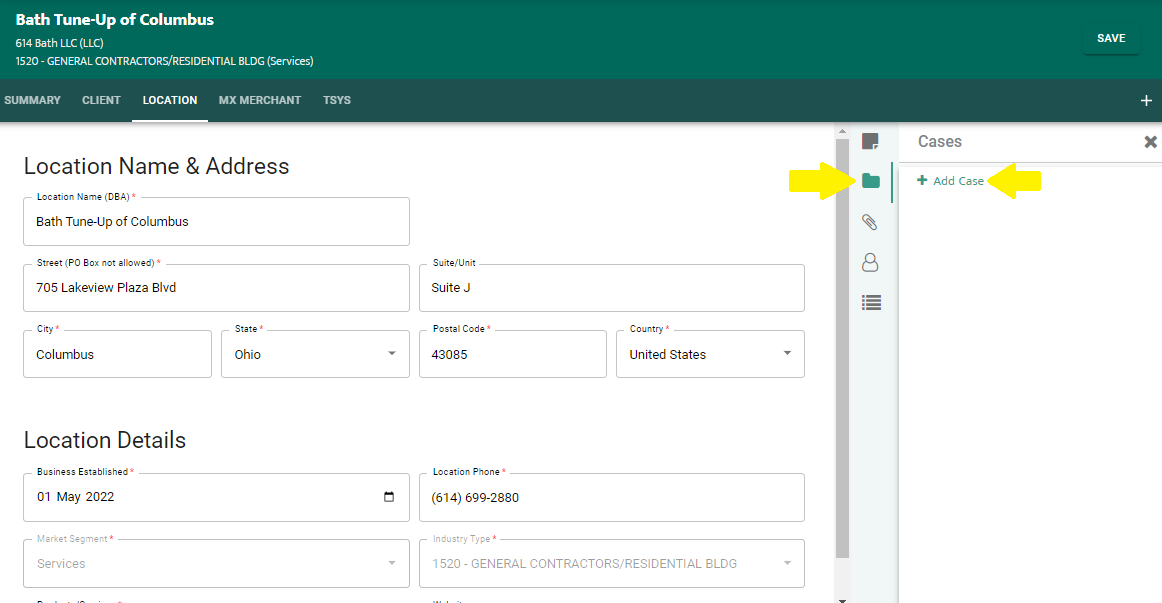
 3. On the right hand vertical side of the screen, click on the Cases folder.
4. Click on + Add Case. It will auto-populate a screen.
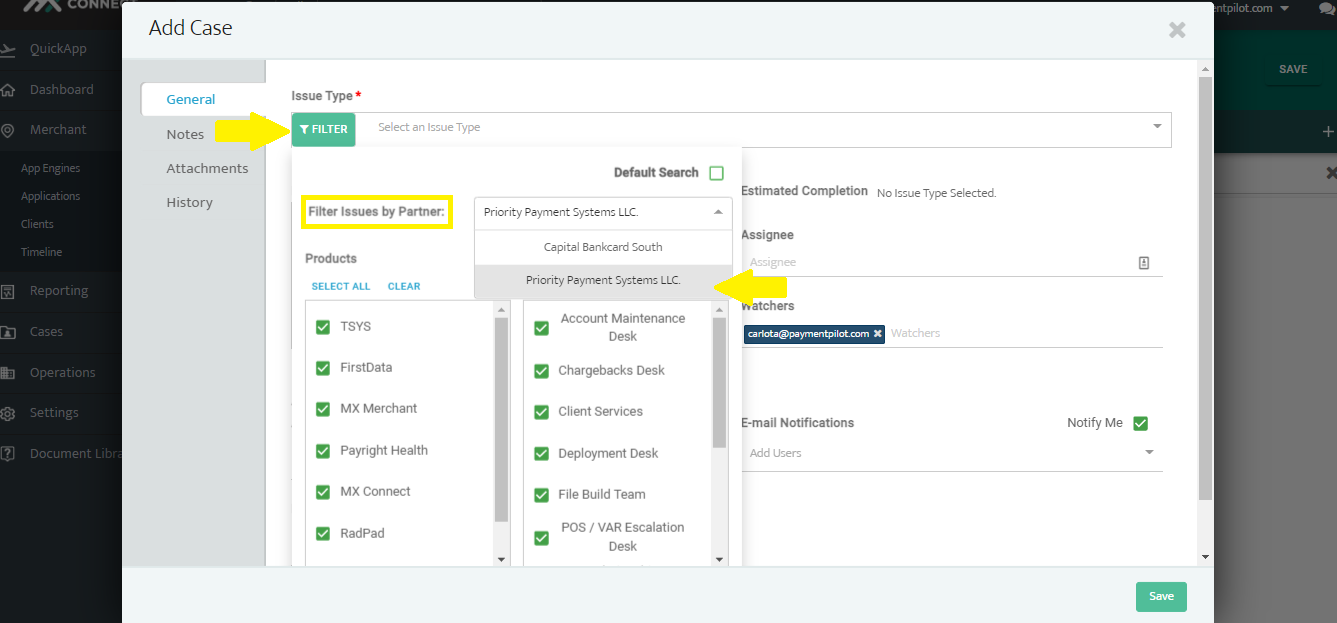
5. Under General tab, click on Filter.
6. Choose Priority Payment Systems LLC in the filter drop-down for categories to appear beside Filter Issues by Partner tab.
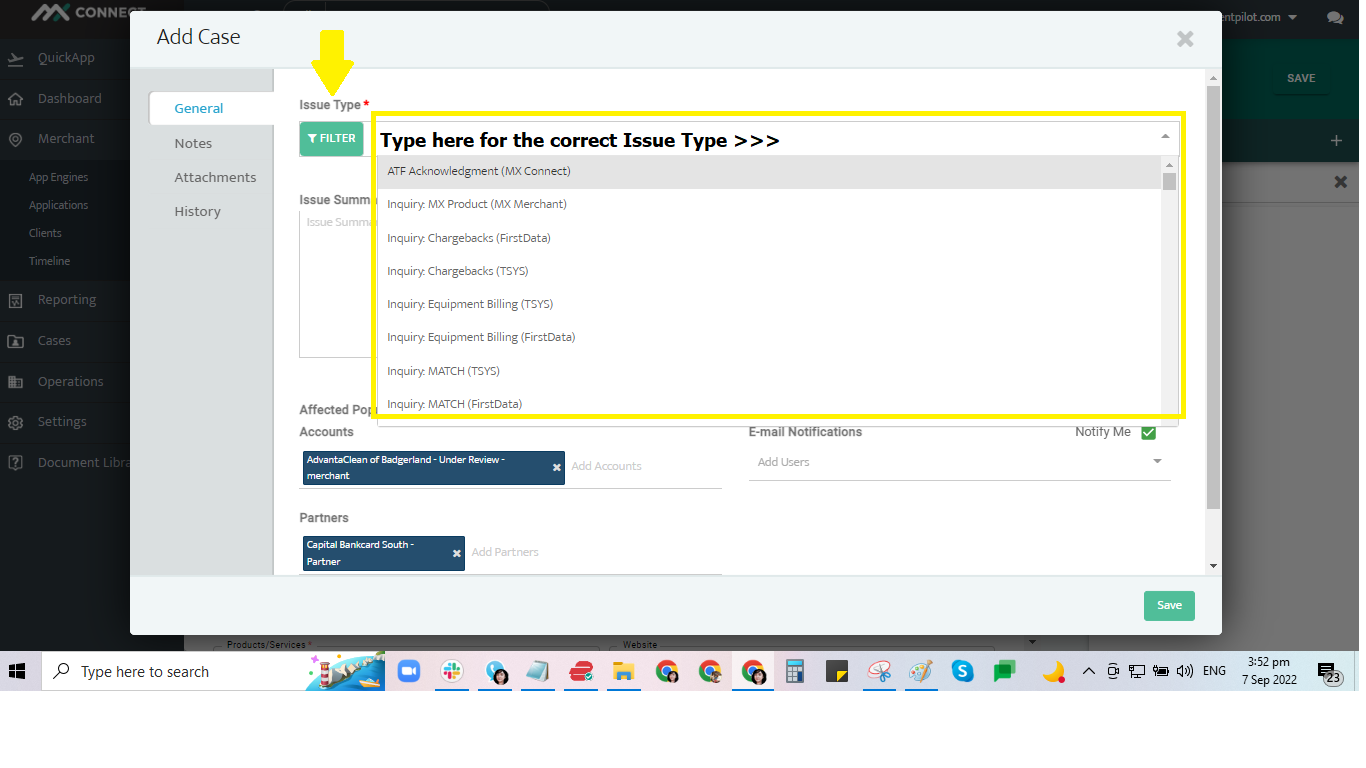
7. Under the Issue Type, select the proper issue for the case you will create and make sure if it is for TSYS or Firstdata.
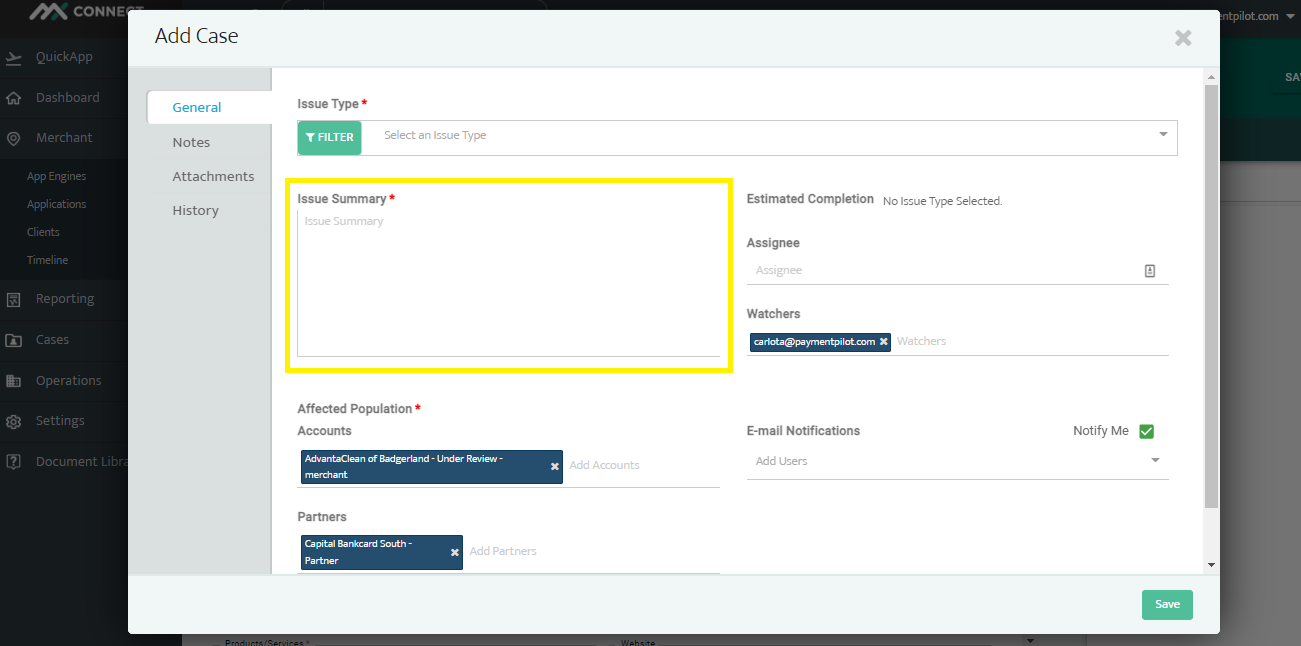
8. Place note in the Issue Summary section of the action you need.
9. Attach the signed form.
10. Hit Save at the bottom of the screen.
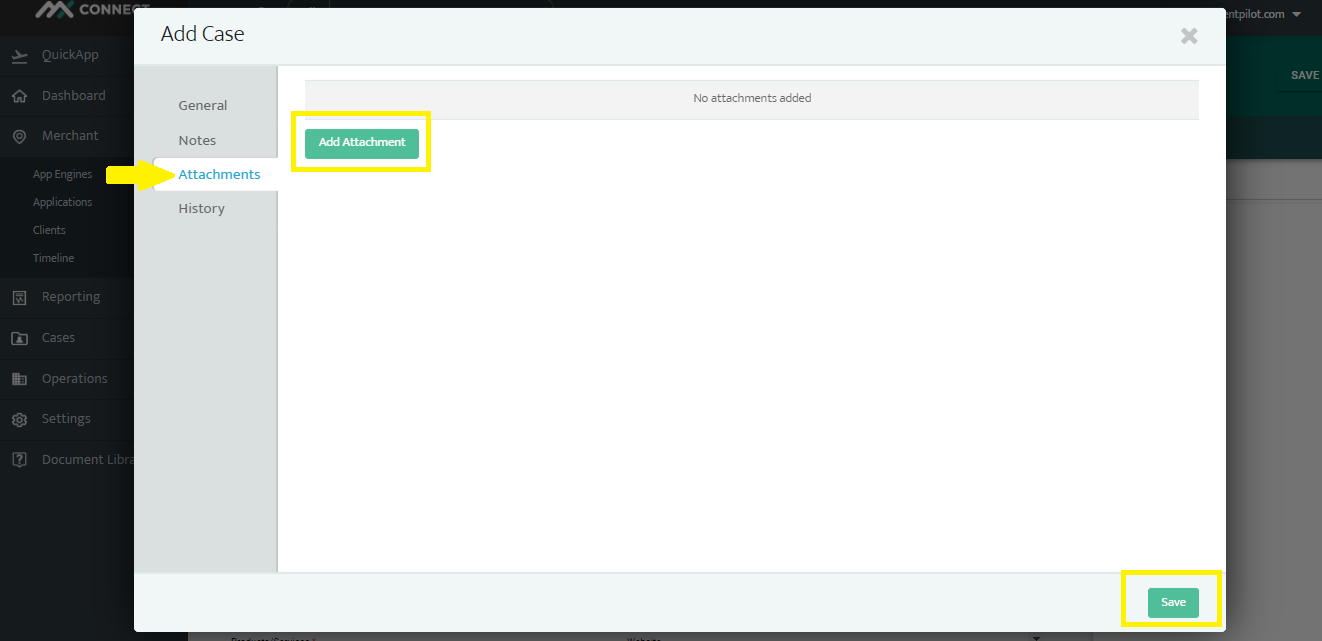
11. Now the case is open.
12. When the request is complete, RM will notify you via email.
14. Send an email to the merchant advising of the status of the request being completed.
To check on the case (s),
1. Go to Cases.
2. Click on My Cases, Open Cases, All Cases.
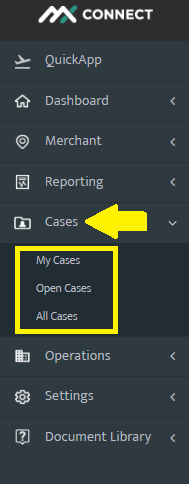
💡 My Cases will show you all the cases you created. Open Cases will tell you the cases that are active and/or being processed.