---
title: Adding Yourself as a User on MX Connect
description: "TSYS | PRIORITY PAYMENT SYSTEMS (PPS) SOP: CREATE A TICKET VIDEO: ADDING YOURSELF AS A USER "
---
[Skip to content](https://support.paymentpilot.com/migration/knowledge/adding-users-on-mx-connect#main-content)
English
Show submenu for translations
Payment Pilot
- Home
- Products
- Pricing
- Blog
- Company
Open main navigation
Close main navigation
- Home
- Products
- Pricing
- Blog
- Company
- English
Show submenu for translations
- Contact us
Contact us
How can we help you?
- There are no suggestions because the search field is empty.
1. [Help Center](https://support.paymentpilot.com/migration/knowledge?hsLang=en)
2. [PPS](https://support.paymentpilot.com/migration/knowledge/pps?hsLang=en)
# Adding Yourself as a User on MX Connect
> **TSYS | PRIORITY PAYMENT SYSTEMS (PPS)**
>
> **SOP: [CREATE A TICKET](https://support.paymentpilot.com/knowledge/creating-a-ticket?hsLang=en)**
>
> **VIDEO: [ADDING YOURSELF AS A USER](https://drive.google.com/file/d/1yl1g4_l6mYXeCLPNuTC-eI5zFSfc2a_j/view?usp=sharing)**
Always make sure to add yourself as a User on the merchant MX Connect account. This way, you will have the window of opportunity to gain access on the merchant's account online.
**To add yourself as a user on MX Connect, follow these steps:**
1. Login to MX Connect.
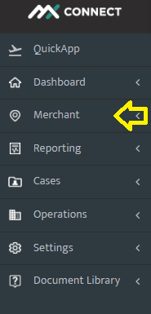
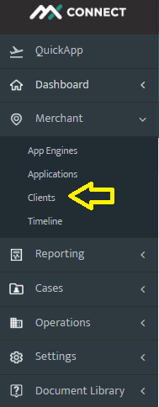
2. Click on Merchant. A drop-down list will be shown. Choose Clients.
3. 
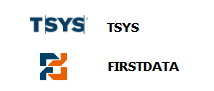
4. On the search bar near the small magnifying glass, type in the merchant's DBA name.

💡 *Remember, it will show you two DBA names. One is with MX logo and the other one could be either TSYS or FIRSTDATA logo. Always make sure to choose either TSYS or FIRSTDATA logo.*
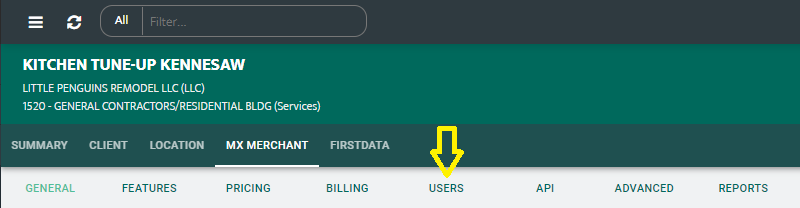
5. Once the merchant's info loads properly, click on MX MERCHANT, choose USERS.
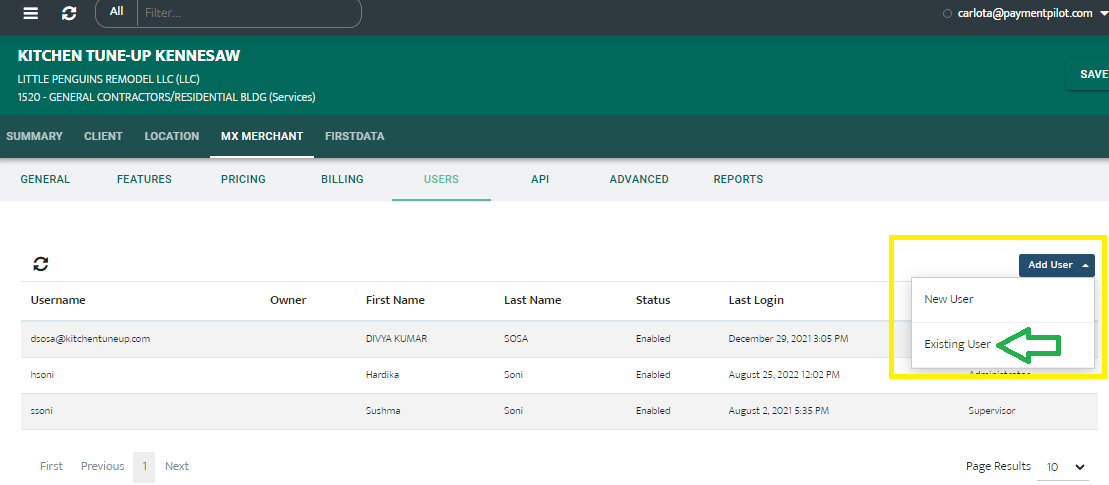
6. Click on ADD USER button and choose Existing User.
7. Type in your payment pilot email address as the Username. Your info will auto-populate. Hit Save.
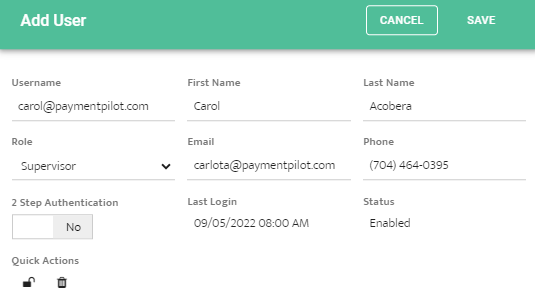
8. 2 Step Authentication.
**(Recommend to leave as is NO)**
- [PPS](https://support.paymentpilot.com/migration/knowledge/pps?hsLang=en)
- Home
- Products
- Pricing
- Blog
- Company
# Payment Pilot
[mailto:email@email.com](mailto:email@email.com)
Copyright © 2026, Payment Pilot